

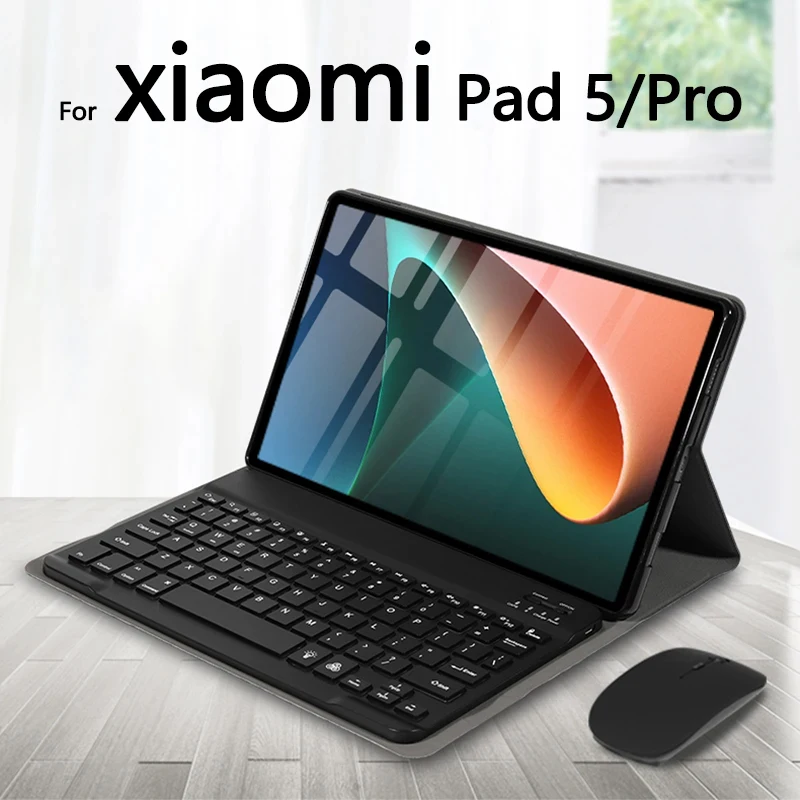

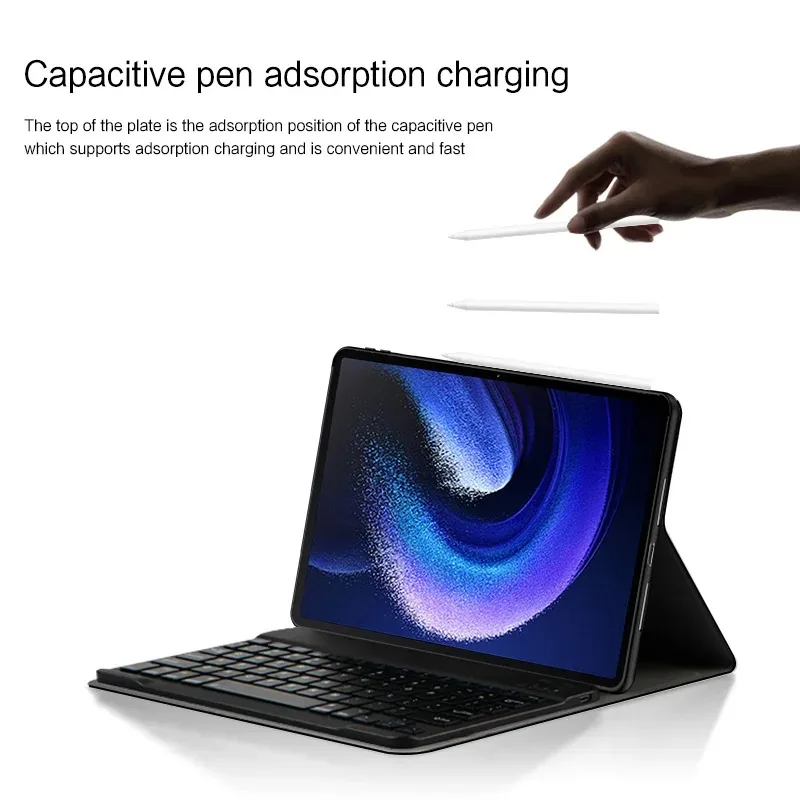
For Xiaomi Mi Pad 5 11-inch tablet Case Detachable Bluetooth Keyboard Case For Xiaomi Mi Pad 5 Pro11-inch
Please confirm your machine model before purchasing~
For Xiaomi Mi Pad 5/5 Pro 11-inch Tablet.
Please note
English Keyboard: There is only ly English letter layout on the keyboard.
Other language keyboards: The keyboard has an English letter layout and that language’s letter layout.
Note: The digital tablet and stylus are not included in the package. The detailed description is for reference only. Please refer to the actual product for the color of the product.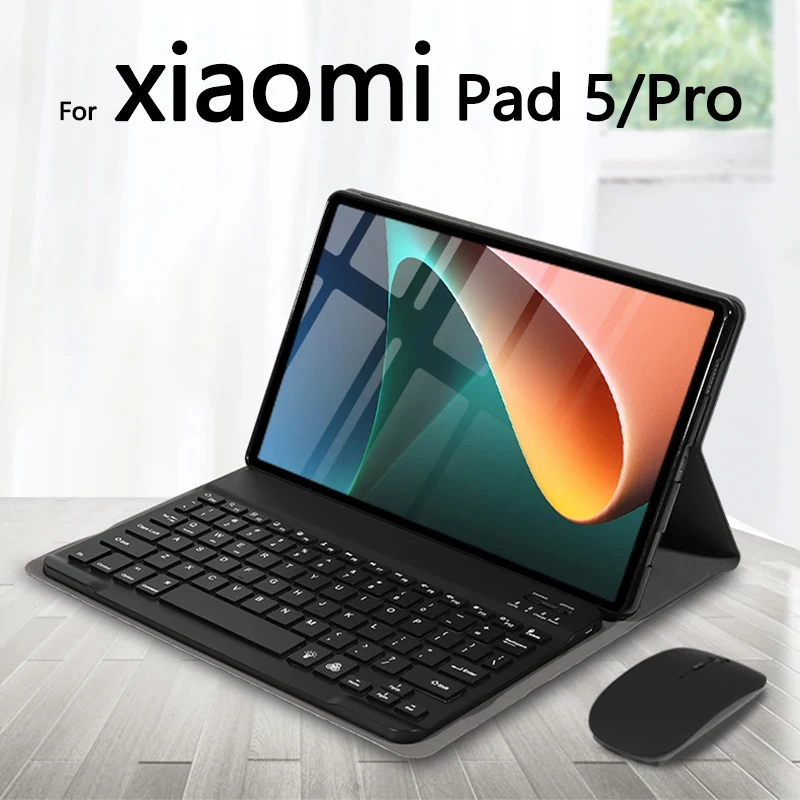 Office learning business fashion
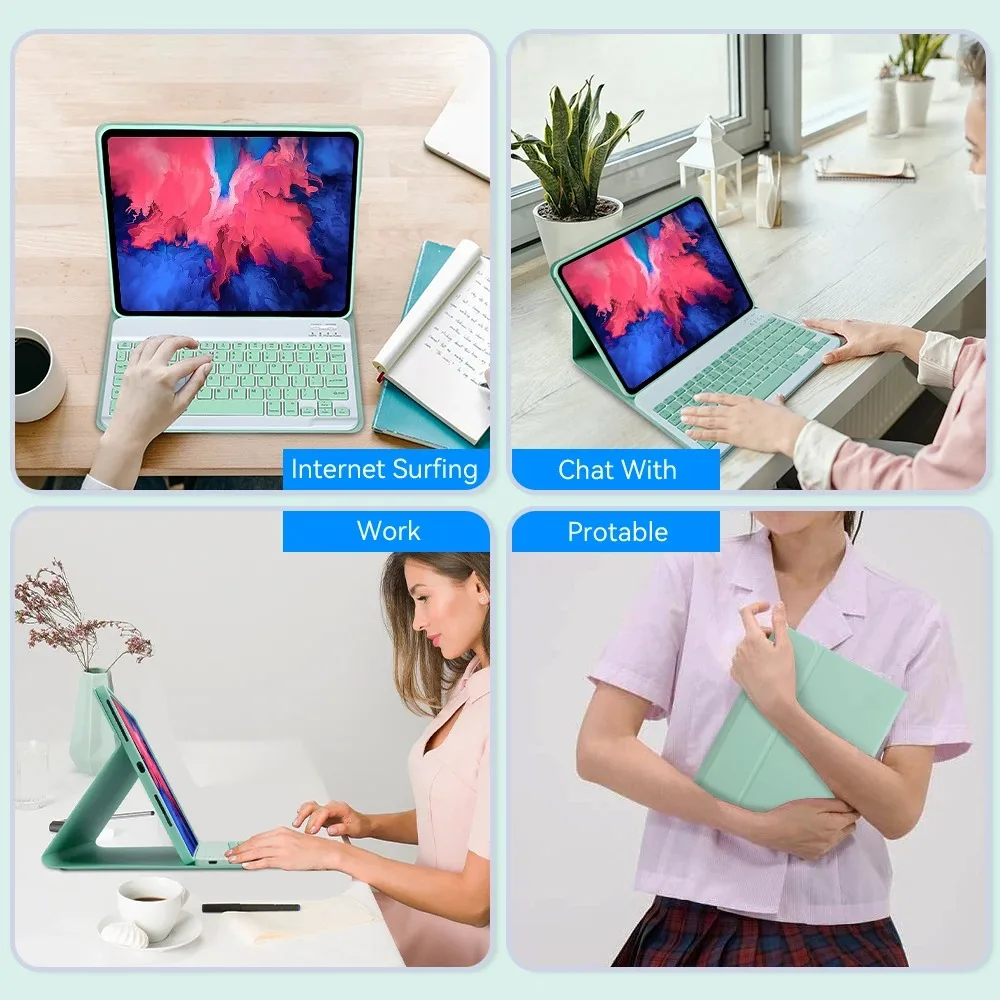
Comfortable solution to your office, study and entertainment needs.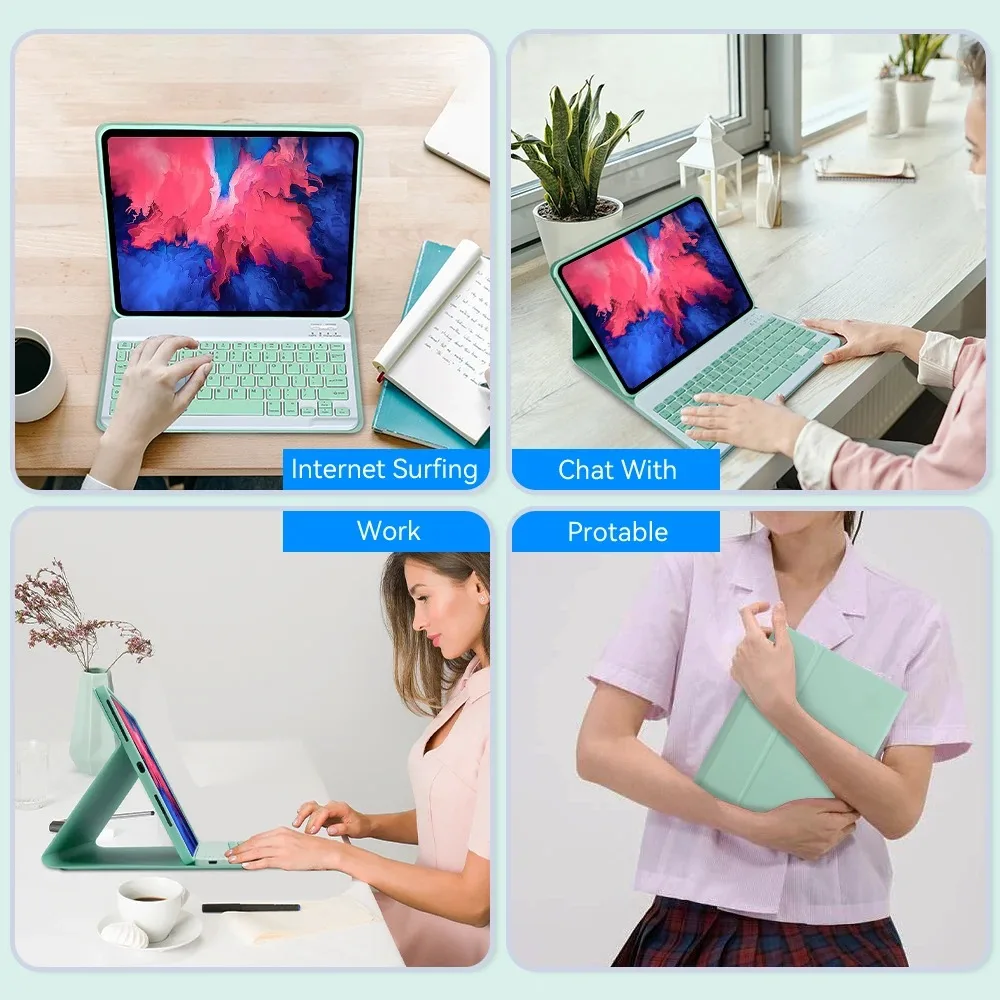 Portable Split Keyboard
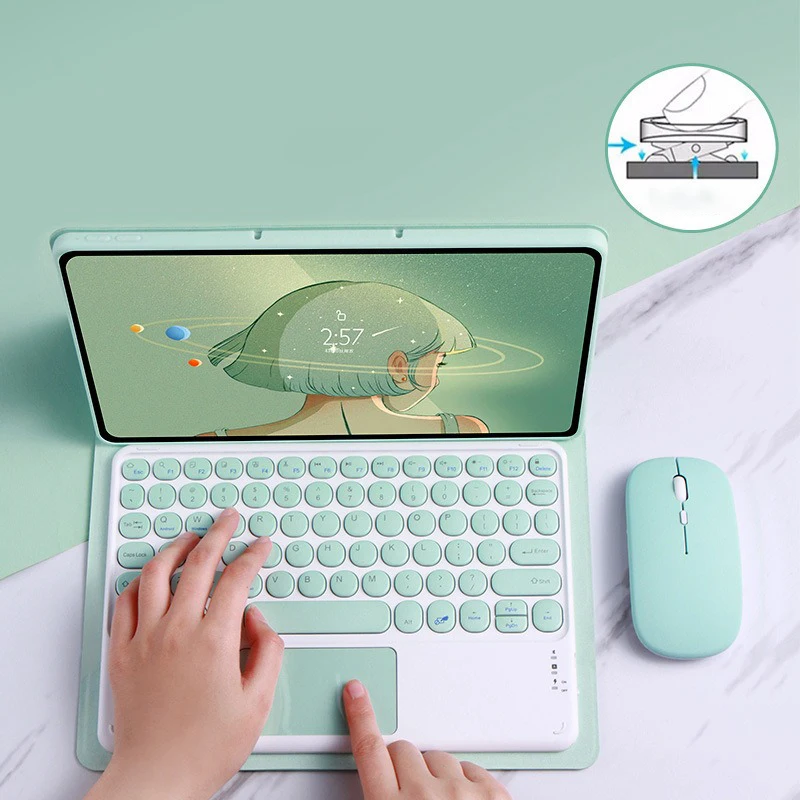
Keyboard and protective cover with strong magnetic absorption, stable typing Trin and a light design, portable travel.
Stable support, anti-slip protection PreciseCutouts
Easy access to all the controls and features,
Perfect cutouts for speakers, camera, and other ports align well with your tablet’s features. New Material Design
Wake on Open Sleep on Close More
Energy-saving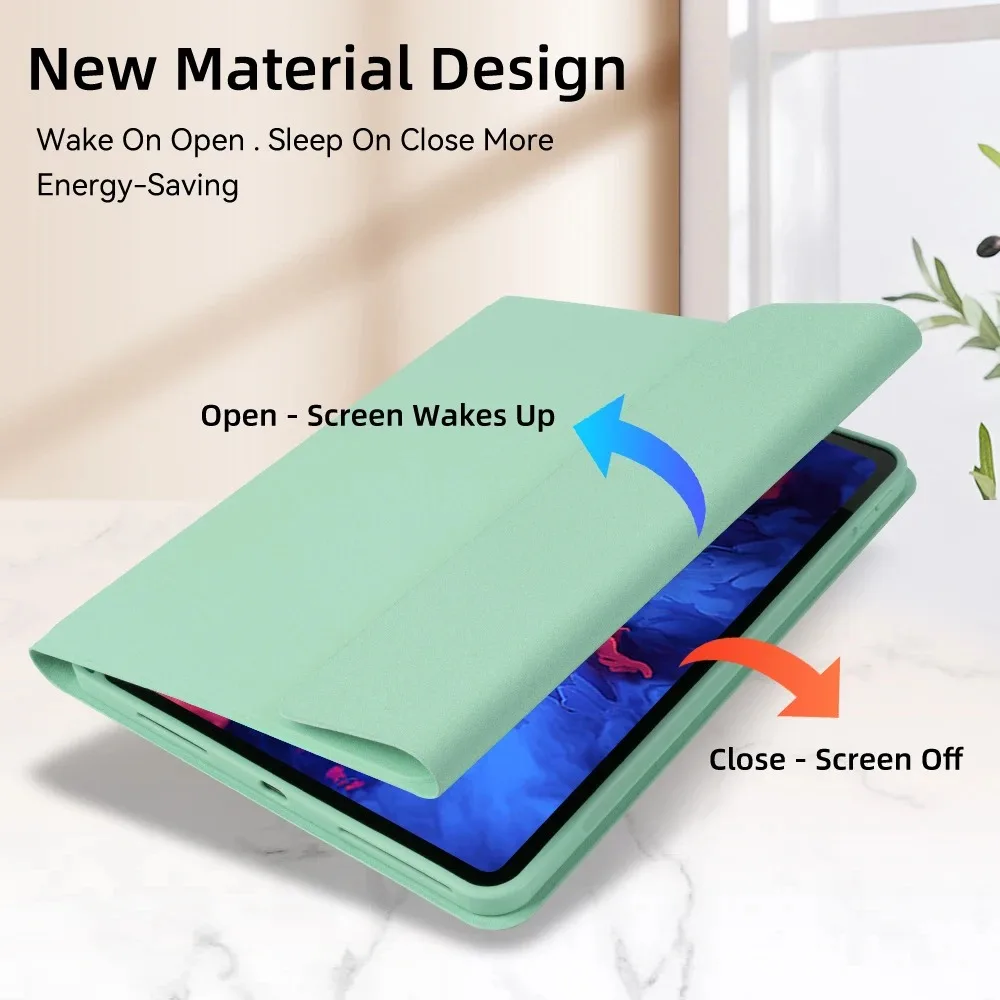 Support Multi-System Compatibility. lity
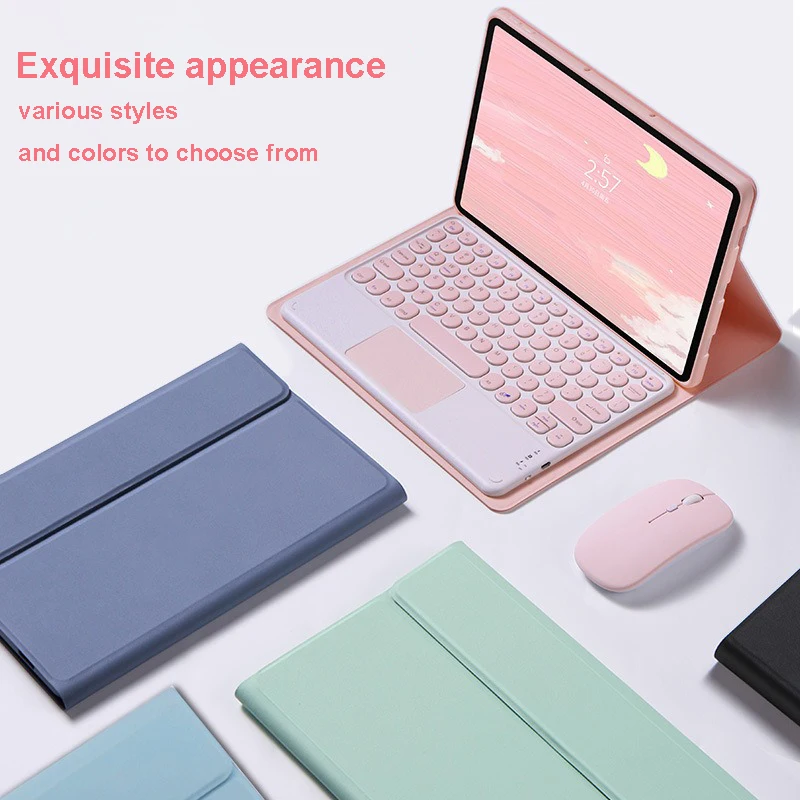
 Exquisite appearance,
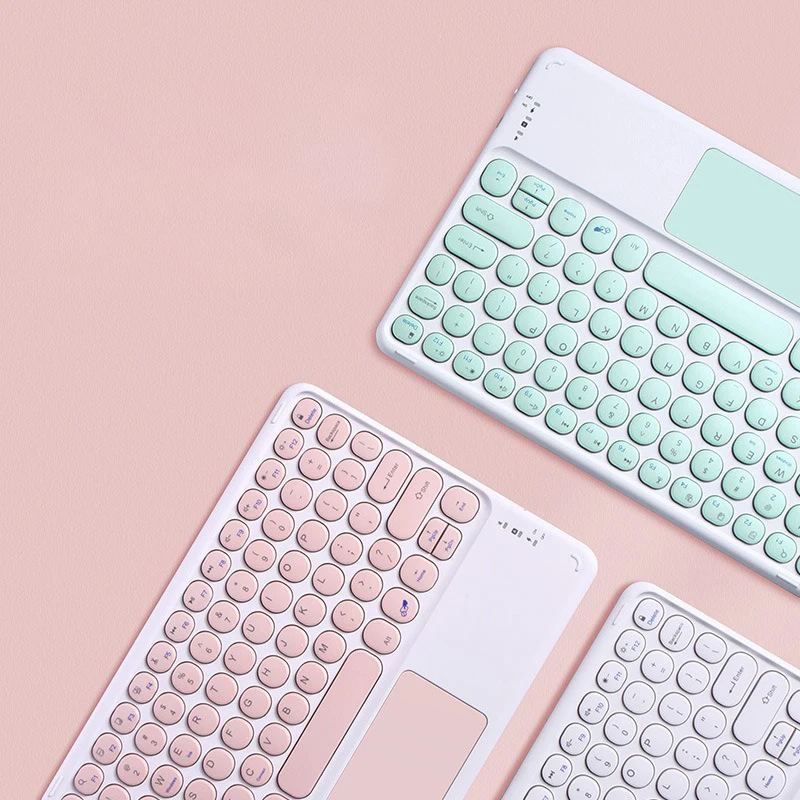
various styles and colors to choose from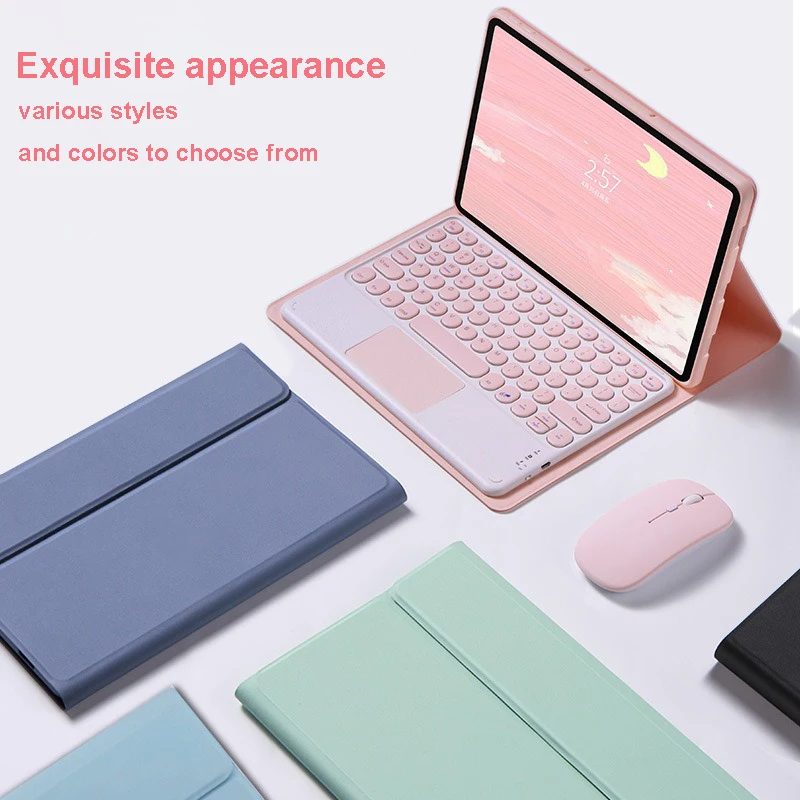
 How to connect keyboard & Mouse?
1,Connect the mouse first, then connect the keyboard.
2, Mouse: Push the switch to the “Bluetooth” icon, find the Bluetooth connection with “Mouse” in the device Bluetooth list.
3,Normal Keyboard:Push the switch in the upper right corner to “ON”, press “Connect”, and find the Bluetooth connection with “Keyboard” in the device Bluetooth list.
4, Touchpad Keyboard: turn on the keyboard, press Fn+C to, then find the Bluetooth connection with “Keyboard” in the device Bluetooth list. FAQ
FAQ
Q What should I pay attention to when connecting the mouse for the first time,e?
A:When the mouse is connected for the first time, you need to press the left button, the right button and the scroll wheel at the same time for about 3-5 seconds.
Q: Is the scroll direction of the mouse USB connector and Bluetooth connection the same?
A: No, they are different. When using the USB connector, the scroll wheel slides in the same direction as the computer mouse. Bluetooth connection is the opposite.
Q: How to switch between different systems?
A: Fn+Q=Android, Fn+W=Windows, Fn+E=IOS.
Please note that you please switch the system off before connecting the ta. Le tt.
Q: Are the Bluetooth keyboard letters messy?
A: Please check the settings according to the prompts,
a. Check whether the keyboard language set on the device is English.
b. Disconnect the keyboard Bluetooth, click Ignore the connected device, reopen the Bluetooth keyboard, select System, Fn+E (IOS system).
Note: Fn+Q=Android, Fn+W=Windows, Fn+E=IOS
c. Press the L S Z buttons at the same time to reset the keyboard
Q: How to configure the input method for different languages?
A: Take the Samsung tablet as an example, open “Settings–“System”–“Language & input”–“Add New Keyboard”. (F orForer systems, please the them in the system settings according to the tips of the iPad example.)
Q:How does the mouse change teh scroll wheel sliding direction on the device?
A: The mouse is connected, open “General” – “Trackpad & Mouse” – close “Natural Scrolling”.



Real customer reviews